If your favorite game keeps crashing, freezing mid-match, or showing strange file errors, you are not alone who needs to learn the video game repair process. Such problems occur with numerous gamers using PCs, PlayStation, Xbox, and Nintendo. This manual will demonstrate some workable video game repair techniques.
In this guide, you will find out why games are corrupted, how to fix them, step by step, and the tools that you can use to make the gameplay videos or recording files work even after being damaged, like 4DDiG Video Repair.
Regardless of whether you are an amateur gamer or an experienced streamer, this guide will help you reestablish the comfortable play process and avoid new problems.
Part 1. Common Causes of Game Problems
Game issues can appear suddenly or gradually, often after an update, storage failure, or even a power outage. It is better to know their causes so that you can select the appropriate fix and prevent crashes in the future.
1. Corrupted Game Files /Installations
Bad disk sectors, faulty patches, or interrupted downloads can corrupt vital game data. Unfinished installations will either have loading failures or crash instantly. A game file corruption fix is usually initiated by checking or fixing installation files.
2. Broken Gameplay Videos or Capture Files
Gamers who have captured matches to stream or share occasionally experience corrupted video captures that are unable to open. These normally arise because of forced closures or failed storage drives.
3. Driver or Hardware Issues
The old GPU drivers, unstable overclock options, or even the broken memory modules may cause crashes in the system. Even the error of the SSD firmware may influence the loading of the game assets.
Research indicates that about 70–75 % of Windows “STOP” errors come from driver-related faults.
4. Save Data Corruption or Deletion
Losing hours of progress is painful. Power loss during auto-save or overwriting cloud saves can cause serious data loss.
5. Console Hardware Faults
The PS5, Xbox, and Switch are typical examples of consoles experiencing overheating, broken discs, or damaged parts. The Hardware problems may resemble software corruption and need professional service.
Now that we know what causes these issues, let us move on to practical video game repair solutions you can try today.
Part 2. How to Repair Video Games: 5 Practical Methods
From software issues to hardware problems, this section covers 5 practical methods for video game repair that you must try:
Method 1 – Use A Specialized Tool Like 4DDiG Video Repair For Damaged Gameplay Files Or Recordings
If your recorded match, highlight clip, or gameplay walkthrough will not play, the video file itself may be corrupted. Power failures or interrupted saves can leave partial data that normal players cannot open.
A video game file repair tool like 4DDiG Video Repair is designed for these situations. It focuses on fixing corrupted video files, not the game software, making it especially useful for streamers and content creators.
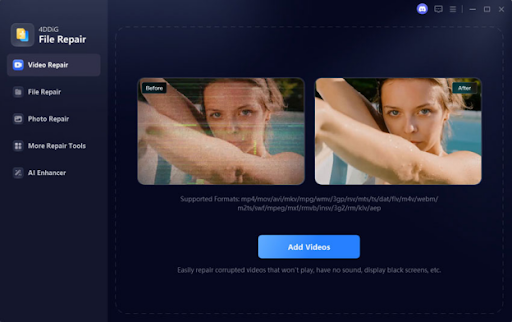
1.Run game video repair tool. Click “Video Repair” from the left menu and click “Add Videos” for adding your corrupt game clips, and you can also add multiple at once.
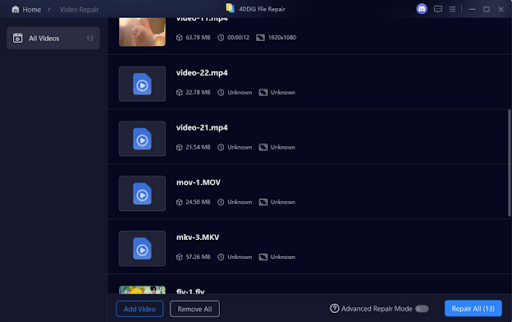
2.Click the “Repair All” button to begin effortlessly repairing the videos.
3.Once the videos are repaired, click the “Preview” button to check the results. When you are satisfied with the results, you can click “Save” and save the repaired video to your storage.
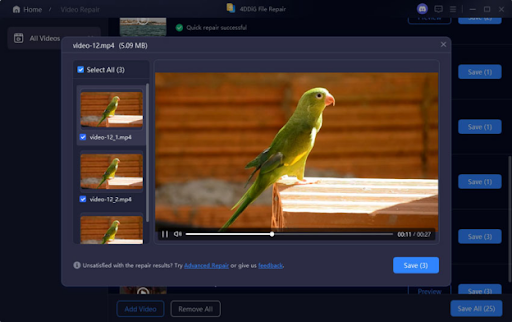
Using this process, you can easily repair corrupted gameplay video clips and restore your lost recordings. The program uses intelligent algorithms to rebuild video structure and correct unreadable data, making it an effective solution for damaged captures.
Method 2 – Repair Corrupted Game Files Or Installation
When a game refuses to start, the first step is to verify its files. Major launchers like Steam, Epic Games, or Ubisoft Connect include built-in repair tools.
1.Open your game launcher, like Steam or Epic Launcher, and find your game in the “Library”.
2.Right-click the game and select “Properties”, then go to “Installed Files/Local Files” and click “Verify integrity of game files”.
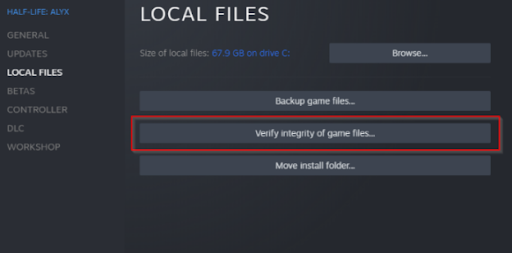
3.Wait while the system checks and redownloads any missing or damaged data.
If the issue continues, manually uninstall and reinstall the game. Always back up your saved data before doing so to avoid losing progress. This simple method covers the basics of how to repair game files without extra tools.
Method 3 – Update Drivers & Perform Hardware Diagnostics
Outdated drivers are one of the most frequent reasons for crashes and slowdowns. Keeping your system updated helps maintain stability and prevent corruption.
1.Open your graphics card software (NVIDIA GeForce Experience or AMD Adrenalin).
2.Check for the latest driver updates and install them. For example, NVIDIA users can click “Help” and then “Updates”.
3.Search for “Windows Memory Diagnostic” and run this app to detect RAM issues.
4.Open “Command Prompt” as admin and run “chkdsk e: /f” to scan for storage errors. You can also run this for other drives by replacing the drive letter.
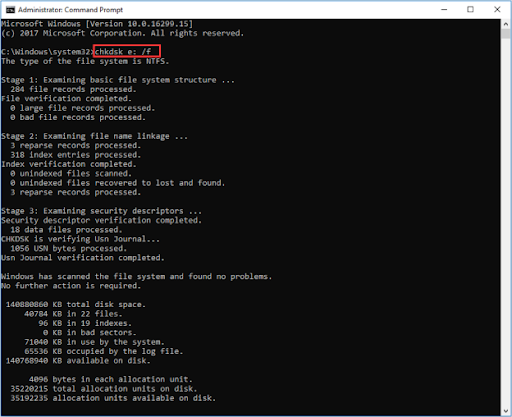
5.If you find any storage errors, press “Win + X” and go to “Device Manager”, then right-click on your “Storage Drive” to select “Update Driver” and choose “Search Automatically”.
6.Restart the system after repairs are complete.
This is one of the easiest ways to fix game crashes and improve overall system reliability. Hardware diagnostics ensure that your machine is physically capable of running modern games smoothly.
Method 4 – Recover Game Save Data
If your saves vanish after an update or crash, do not panic. Many platforms now use automatic cloud syncing, but you can also restore saves manually.
1.Ensure that you have subscribed to and enabled cloud backup for the game.
2.Open “Settings” on your PS and go to “Saved Data and Game/App Settings”
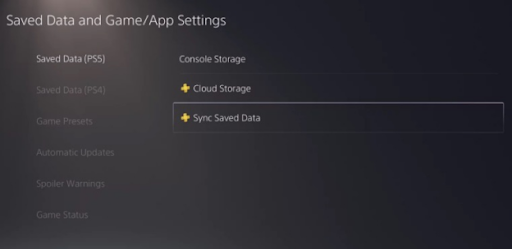
3.Go to “Saved Data” from the left side and choose “Sync Saved Data”.
Regularly creating automatic and manual backups is the best game save data recovery practice. Always store a copy of your save files on external storage before performing major updates or reinstalls.
Method 5 – Seek professional service/console hardware repair
When the problem is physical rather than digital, it is time to consult experts. There can be a failure of fans, overheating of chips, failure of disc drives, or failure of mainboards. You cannot boot up your PlayStation, Xbox, or Switch, or read discs, then find a certified console game repair center.
The certified technicians can detect hardware failures, replace damaged components, and ensure your console meets the manufacturer’s safety standards.
Consider the cost of a console game repair service versus replacement before committing, especially for older systems out of warranty.
Part 3. Preventive Tips & Ideal Practices
Preventing issues is much easier than repairing them. Adopting consistent habits keeps your system stable and your data safe.
Regularly back up game saves and recorded videos.
Keep drivers, game launchers, and operating systems updated.
Avoid forced shutdowns during gameplay or installation.
Store games on reliable SSDs or hard drives.
Run antivirus and malware scans monthly.
Consistent maintenance greatly reduces the chance of needing video game repair in the future and helps your system run efficiently for years.
FAQ
Q1: Will Verifying Game Files Fix All Crashes?
Not always. It repairs missing or damaged files, but deeper hardware or driver problems may need other solutions.
Q2: Can Video Repair Tool Fix My Game Itself?
No. It repairs corrupted game video recordings, not the game’s executable files. However, it is excellent for restoring gameplay clips or match highlights.
Q3: How Often Should I Back Up My Game Saves?
At least once a week, or before major updates and reinstallation. Frequent backups prevent devastating data loss.
Conclusion
Video game repair is not only about installing software. It involves the process of checking corrupted files, updating drivers, lost saves, and even repairing broken gameplay videos. Begin with the easiest ones, such as checking game files and updating your GPU drivers.
In case your gameplay videos are not readable, use a special repair app, such as 4DDiG Video Repair, to fix the videos. In case of hardware failure, professional console repair services can be invested in. With the solutions and preventive measures specified here, you are likely to fix most of the problems.